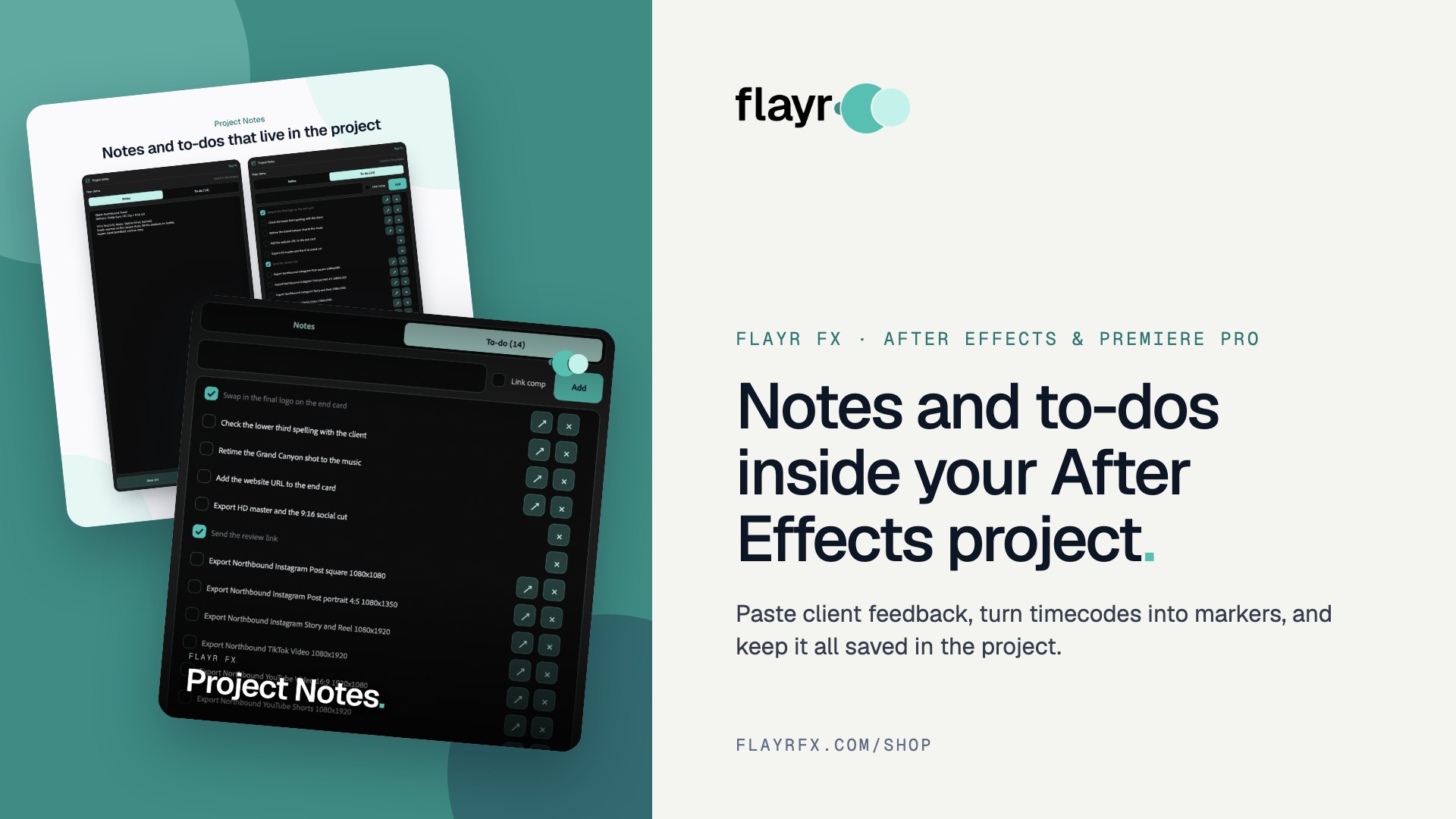
How to Keep Notes in After Effects and Premiere Pro (Client Feedback, To-Dos and Markers)
Client feedback, render settings, font names, the thing you must not forget on Monday. Every edit builds up notes, and they usually end up scattered across email threads, sticky notes and text files. Keeping notes in After Effects and Premiere Pro, right next to the timeline, is one of the simplest ways to speed up revisions and stop things slipping through.
Here are the options you have, what they’re missing, and how Flayr FX Project Notes keeps everything in a panel that saves inside the project.
Where editors usually keep notes, and why it breaks down
- Email and messaging threads. The feedback is there, but you have to find it, read it again and match each timecode to the timeline yourself.
- Sticky notes and notebooks. Fine for one job. They don’t travel with the project when it goes to another editor.
- Disabled text layers and guide layers. A common After Effects hack, but they clutter the comp and are easy to render by mistake.
- The Comment column and markers. Useful for short labels, but no good for a list of revisions you can tick off.
What’s missing is a proper notes panel: something that sits next to the timeline, knows which comp or sequence you are in, and is saved with the project file.
Flayr FX Project Notes: a notes and to-do panel for After Effects and Premiere Pro
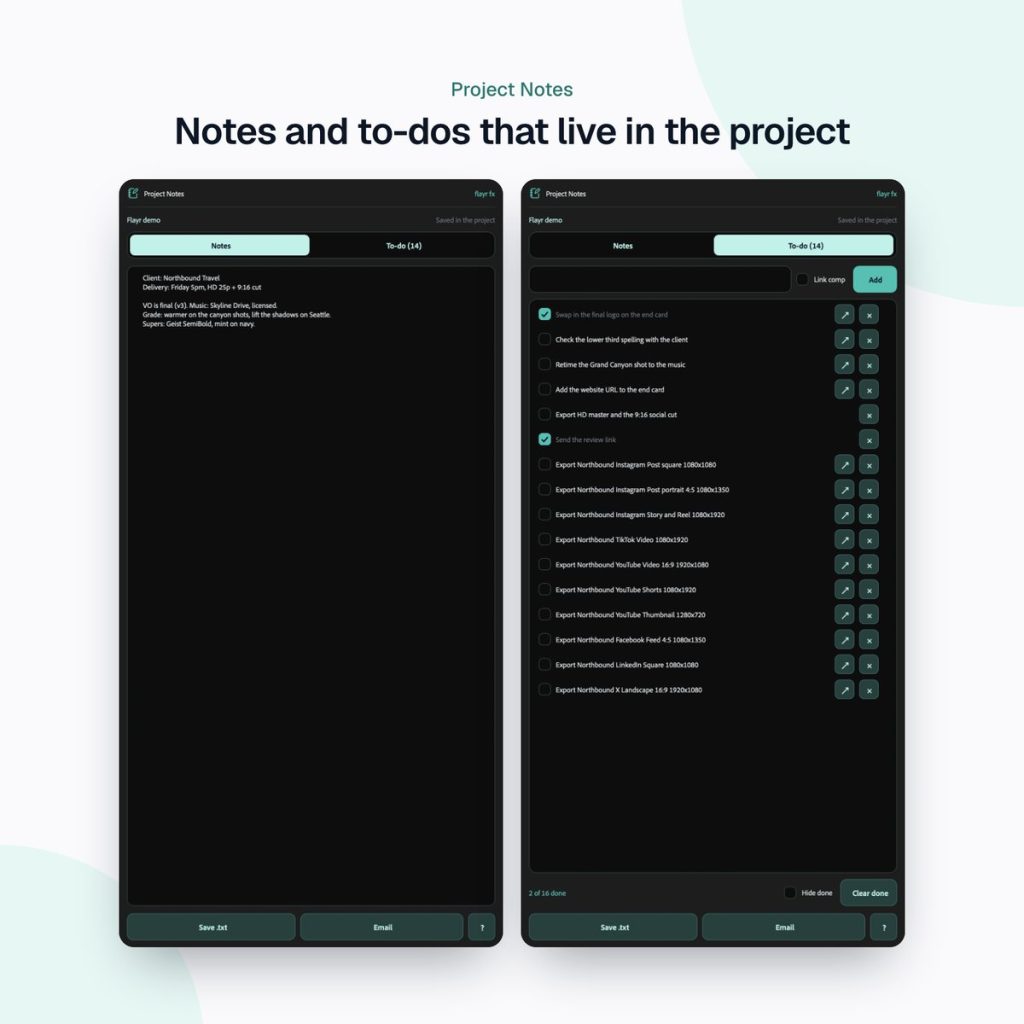
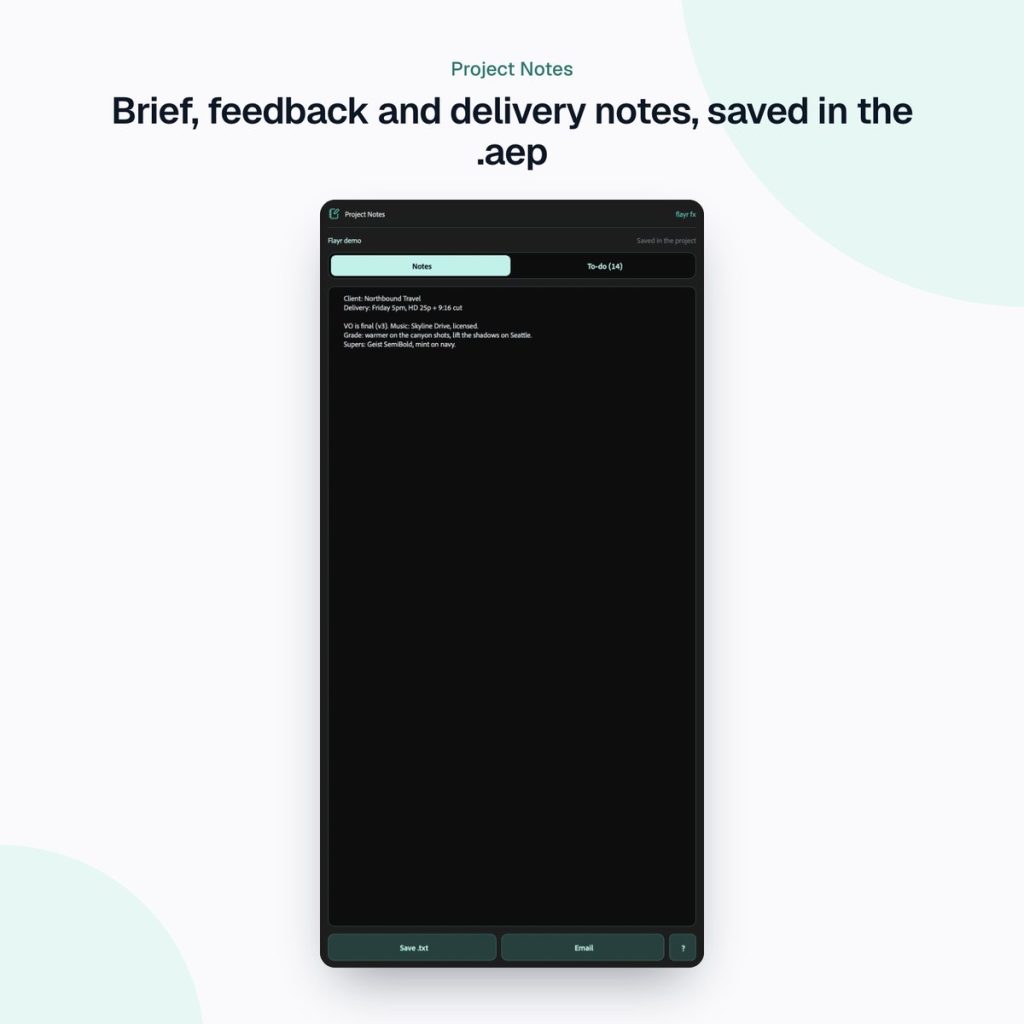
Flayr FX Project Notes is a dockable panel for both apps (ScriptUI in After Effects, an extension in Premiere Pro). It saves inside the project, so the notes travel with the .aep or .prproj to whoever opens it next.
Notes for every timeline
Each comp or sequence has its own notes and to-dos, and so does the whole project. Follow shows the timeline you are working in, or you can pin the panel to one.
Paste an email, get a to-do list
Paste a round of client feedback and the bullet points can become to-dos in one click. A timecode in a bullet links that to-do to the frame.
Turn timecodes into markers
One button puts a marker on the timeline at every timecode in your notes, with the note as its text. Write a range like 0:12 – 0:18 and it makes one marker covering it. That turns a client’s email into a set of markers on the timeline.
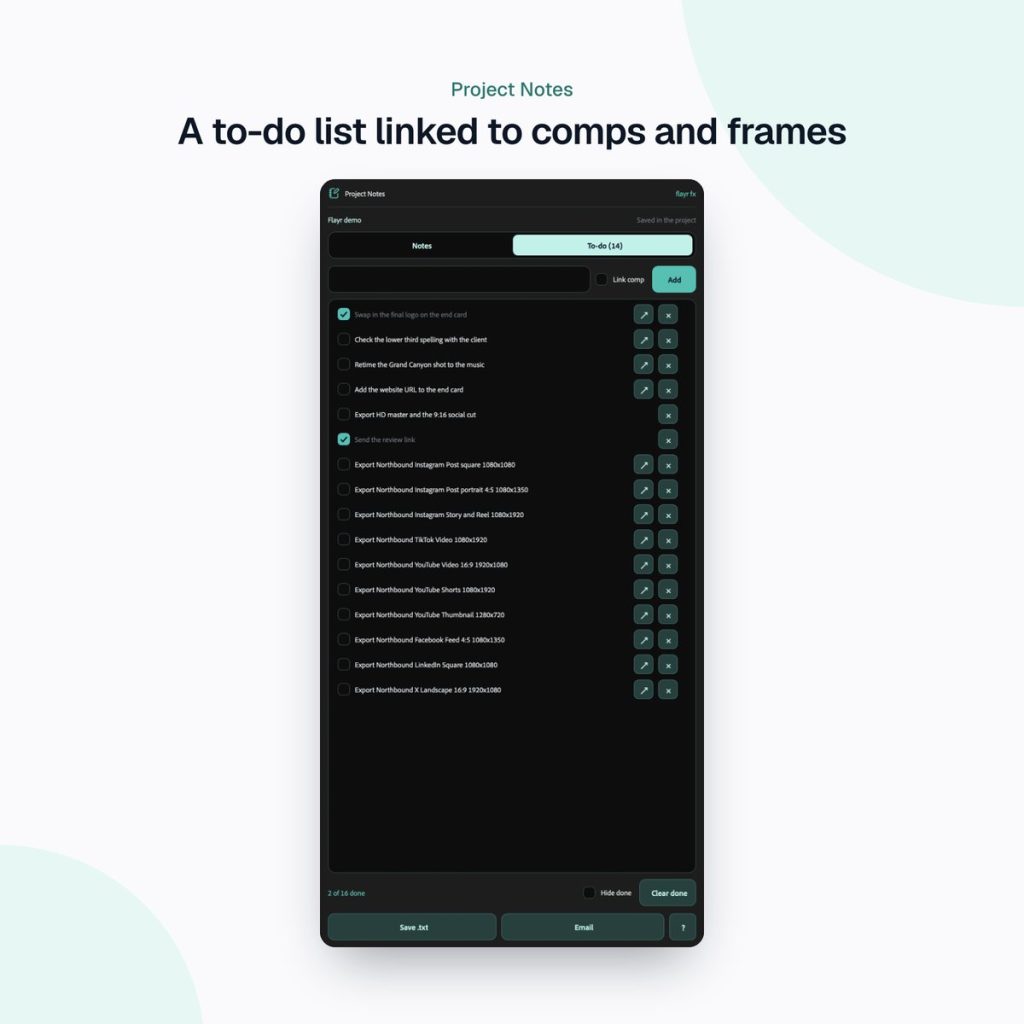
A to-do list you can tick off
Add with Return, tick when done, double-click to edit, and hide or clear the done ones. Link a to-do to the playhead and one click takes you back to that frame.
Share, archive and back up
Save one timeline or all of them as a neatly laid out text file for handovers and archiving, or open a new email in your mail app with the notes in the body, ready for the producer or client. A copy is also kept in your user folder in case a project is closed without saving.
A typical revision round with Project Notes
- The client emails feedback with timecodes. Copy the whole email.
- In the Project Notes panel, paste it into the notes for the comp or sequence and turn the bullets into to-dos.
- Press the markers button. Every timecode now has a marker on the timeline with the note as its text.
- Work through the list, jumping to each frame from its to-do and ticking it off as you go.
- Email the notes back to the producer as a record of what changed, or save them as a text file with the project.
Part of the Flayr FX Tools range
Project Notes is one of a family of small, focused After Effects and Premiere Pro tools we built for our own post-production jobs. Own more than one and they talk to each other: Screenshots and Social Comps add to-dos to Project Notes, and the Project Organiser writes what it moved into your notes. The free Flayr FX Tools hub puts the whole range in one panel under Window › Extensions › Flayr FX Tools, with a tile that opens or runs each tool. It also installs Flayr Ipsum, free placeholder text for titles and lower thirds.
Using Flayr FX Screenshots? Send any captured frame to your to-do list as “review this”, linked to its frame. Social Comps adds an export to-do for every new social comp.
Frequently asked questions
Are the notes saved inside the project?
Yes. Notes and to-dos are saved inside the After Effects or Premiere Pro project, so they open with it on any machine. A backup copy is also kept in your user folder.
Does it work in Premiere Pro as well as After Effects?
Yes. One download includes a dockable ScriptUI panel for After Effects and an extension for Premiere Pro, both for 2022 or later on Mac and Windows.
How do I install it?
In After Effects, run the installer with File › Scripts › Run Script File, restart and open it from the Window menu. In Premiere Pro, double-click the installer and choose Window › Extensions › Flayr FX Project Notes.
Can I share notes with a producer or client?
Yes. Save notes as a text file, or open a new email in your mail app with the notes already in the body.
Keep feedback where the work happens. Get Flayr FX Project Notes on flayrfx.com.

- How to Find and Add Sound Effects in Premiere Pro Faster - November 5, 2026
- How to Organize an After Effects Project (Tidy the Project Panel in One Click) - November 5, 2026
- How to Make a Grid in After Effects (Split Screens, Mosaics and Layout Guides) - November 5, 2026


Leave a comment
You must be logged in to post a comment.